
How to Use RHEL 10 Lightspeed to Simplify Linux Administration, and Where to Be Careful
Learn how to use RHEL 10 Lightspeed AI and Generative AI to simplify Linux administration tasks. Explore features, benefits, real-world examples, and future possibilities.RHEL 10 Lightspeed AI, Generative AI Linux, AI-powered CLI, Red Hat Enterprise Linux 10 AI, simplify Linux administration, RHEL 10 features, Lightspeed CLI benefits, AI for system administrators
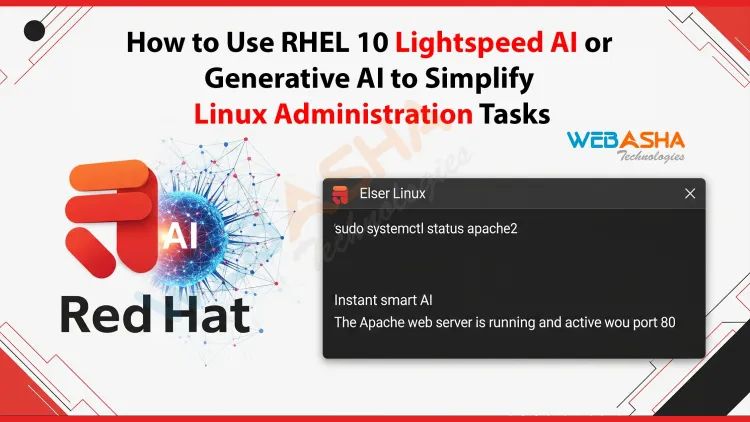
Quick answer: RHEL Lightspeed is Red Hat's generative AI command-line assistant for RHEL 10. You install the command-line-assistant package on a registered system, then ask questions in plain English from the terminal, for example about disk space, services or SELinux. Treat answers as drafts: read the commands, check them against Red Hat documentation and test before running them on production.
Key takeaways
- RHEL Lightspeed is a command-line assistant for RHEL 10 that answers admin questions in natural language.
- It needs a registered RHEL system and a connection to Red Hat's service. Check the docs for current requirements and data handling.
- Use it to look up commands, explain errors and draft steps, never to run commands blindly.
- Always verify against official documentation and test in a lab, especially for storage, firewall and SELinux changes.
- Do not paste secrets or sensitive data into prompts, and check your organisation's policy first.
What is RHEL Lightspeed?
RHEL Lightspeed is Red Hat's generative AI assistant for Red Hat Enterprise Linux. The command-line assistant lets you ask questions in plain English from the terminal and get an explanation or a suggested command, based on Red Hat's documentation and knowledge. For the wider picture of changes in the release, see our guides to the AI-powered CLI in RHEL 10 and what is new in RHEL 10.
Product details, names and requirements change. Follow the current instructions in the Red Hat documentation for your RHEL minor version, because we have not re-checked every step on a current system.
How do you set it up?
- Use a supported system. RHEL 10 (and some RHEL 9 minor releases, per Red Hat's documentation).
- Register the system with Red Hat (subscription-manager and Red Hat Insights) because the service uses your subscription identity.
- Install the package:
sudo dnf install command-line-assistant - Enable and start the service as described in the documentation, then run the assistant command with a question, for example
c "how do I see which service is using port 8080?"
The command name and options are as documented by Red Hat at the time of writing. If yours differs, trust the documentation.
What can you ask it?
| Task | Example prompt | What to check |
|---|---|---|
| Find a command | "Show disk usage by directory, largest first" | Is the command read-only? du and sort are |
| Explain an error | "What does 'Permission denied' for httpd on port 8081 mean with SELinux?" | Confirm with ausearch and the audit log |
| Service troubleshooting | "Why might sshd fail to start?" | Check journalctl -u sshd yourself |
| Storage | "How do I extend a logical volume and its filesystem?" | High risk: test on a lab VM first |
| Networking | "Set a static IP with nmcli" | Wrong settings can cut off your session |
| Concept | "Explain firewalld zones" | Compare with the documentation |
How do you use it safely?
- Read before you run. Do not paste a suggested command into a root shell without understanding each part.
- Prefer read-only commands first, such as
df -h,ss -tulpnorsystemctl status, to gather facts. - Cross-check with
manpages and Red Hat documentation. - Test on a non-production VM before changing storage, networking, firewall or SELinux on a real server.
- Keep a rollback. Snapshot or back up before risky changes.
- Do not paste secrets, private keys, customer data or internal host details into prompts. Check where prompts are sent and stored under your organisation's policy.
Limits to expect
- It can be wrong, outdated or too generic for your setup.
- It does not know your server's state unless you give it relevant output.
- It does not replace understanding. You must be able to judge whether an answer is correct.
- It needs connectivity to Red Hat's service in the standard setup, so it may not suit air-gapped environments. Check the documentation for options.
Does this matter for RHCSA?
RHCSA is a hands-on exam, and you should assume outside help such as AI assistants is not allowed. Read the candidate rules on Red Hat Training and Certification. Use Lightspeed as a study aid in a lab, then redo the task yourself without it. Our RHCSA RHEL 10 course guide gives more on exam preparation.
A good habit
Treat the assistant like a colleague who gives quick pointers. Ask it to explain why as well as what. For example: "Explain each option in this command and what could go wrong." Then verify and learn from the answer.
Common mistakes
- Running a suggested
rm,dd,mkfsorchmod -Rcommand without checking. - Pasting logs with credentials into the prompt.
- Disabling SELinux or the firewall because the answer suggested it, instead of fixing the cause.
- Relying on it so much that you stop learning the commands.
Next steps
Next steps: to learn the Linux skills behind the assistant, see our RHCSA EX200 course, and read what is new in RHEL 10.
Related reading
Frequently Asked Questions
What's Your Reaction?
 Like
0
Like
0
 Dislike
0
Dislike
0
 Love
0
Love
0
 Funny
0
Funny
0
 Wow
0
Wow
0
 Sad
0
Sad
0
 Angry
0
Angry
0

With a passion for staying on the cutting edge of technology trends, I am dedicated to delivering content that not only informs but also inspires. Whether you need in-depth analysis pieces, informative guides, or thought-provoking opinion pieces, I craft content that resonates with tech enthusiasts and professionals alike.







![Top 10 Famous Ethical Hackers in India [Updated 2026]](https://www.webasha.com/blog/uploads/images/202608/image_140x98_da23f65c290cfbf1237d77aec58a2f0f.jpg)