Linux Disk Management Commands for System Admins
A practical reference for Linux disk management: inspecting devices, partitioning, creating filesystems, mounting persistently, and managing LVM - with the safety notes each command deserves.
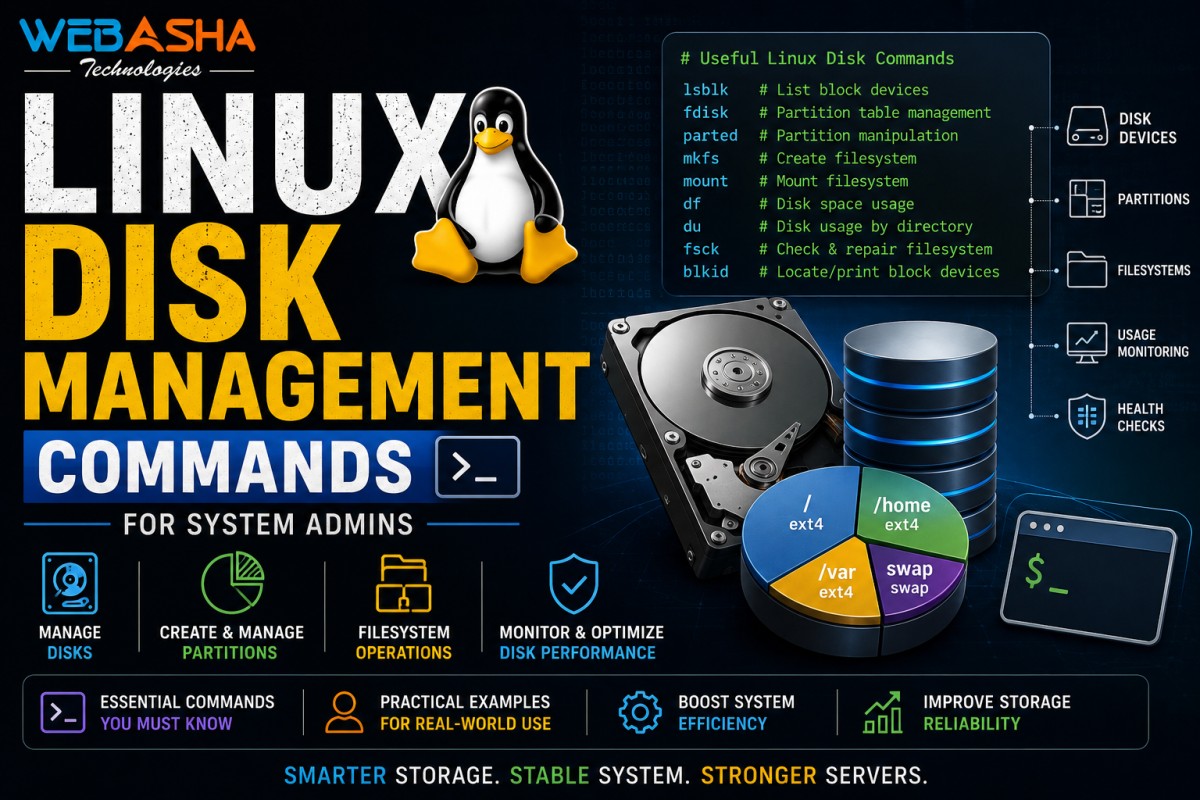
Disk management is where Linux administration gets unforgiving: most commands here are perfectly safe to read with and genuinely destructive to write with. This reference covers the commands that matter, in the order you would actually use them, with the warnings that belong beside each one.
Table of Contents
- What Are the Essential Linux Disk Management Commands?
- How Do You Inspect Disks Before Changing Anything?
- How Do You Partition a Disk in Linux?
- How Do You Create and Mount a Filesystem?
- What Is LVM and Why Use It?
- How Do You Troubleshoot a Full Disk?
- How Do You Safely Extend a Filesystem With LVM?
- What Should You Check Before a Disk Fills Up?
What Are the Essential Linux Disk Management Commands?
The core commands are lsblk and df for inspection, fdisk or parted for partitioning, mkfs for creating filesystems, mount and /etc/fstab for attaching them, and the LVM tools (pvcreate, vgcreate, lvcreate) for flexible volume management. Inspection commands are safe; partitioning and mkfs destroy data.
| Command | Purpose | Risk |
|---|---|---|
lsblk |
List block devices and mount points | Safe |
df -h |
Show filesystem usage | Safe |
du -sh |
Show directory sizes | Safe |
blkid |
Show UUIDs and filesystem types | Safe |
fdisk / parted |
Create and edit partitions | Destructive |
mkfs.xfs / mkfs.ext4 |
Create a filesystem | Erases the target |
mount / umount |
Attach or detach a filesystem | Low |
| LVM tools | Flexible volume management | Moderate |
How Do You Inspect Disks Before Changing Anything?
Always start with lsblk to see the device tree, df -h for mounted filesystem usage, and blkid for UUIDs and filesystem types. Confirming which device is which before running any destructive command is the single most important habit in disk management.
The classic disaster is running a partitioning command against the wrong device name because /dev/sdb and /dev/sdc swapped after a reboot. Identify disks by size, UUID and mount point - never by memory.
How Do You Partition a Disk in Linux?
Use fdisk for MBR disks and parted or gdisk for GPT disks. Both let you create, delete and inspect partitions, and both write changes that can destroy existing data - so verify the target device, and back up anything important, before writing the partition table.
After writing a new partition table, the kernel may still hold the old one. partprobe or udevadm settle forces a re-read so the new partitions appear in /dev.
How Do You Create and Mount a Filesystem?
Create the filesystem with mkfs (for example mkfs.xfs or mkfs.ext4 on the partition), create a mount point directory, then mount it. For the mount to survive a reboot, add an entry to /etc/fstab using the filesystem UUID rather than the device name.
Using the UUID from blkid in /etc/fstab matters because device names are not stable across reboots. A wrong or stale fstab entry can leave a server unable to boot - always test with mount -a before rebooting.
What Is LVM and Why Use It?
LVM (Logical Volume Manager) adds a flexible layer between physical disks and filesystems, letting you resize volumes and span multiple disks without repartitioning. The workflow is: pvcreate on the physical devices, vgcreate to pool them, then lvcreate to carve out logical volumes.
- Physical Volume (PV) - a disk or partition handed to LVM
- Volume Group (VG) - a pool made from one or more PVs
- Logical Volume (LV) - the flexible 'partition' you format and mount
The practical payoff is growing a full filesystem by adding a disk instead of rebuilding the server. Growing is straightforward; shrinking is riskier and not supported by every filesystem type.
How Do You Troubleshoot a Full Disk?
Confirm with df -h, then find the cause with du -sh on candidate directories. Remember that deleting a file held open by a running process does not free space until the process closes it - lsof can identify those cases, and a service restart releases them.
Also check inode exhaustion with df -i. A disk can report free space while being unable to create files because it has run out of inodes - usually caused by millions of tiny files.
Disk management is a core RHCSA exam topic and a daily reality for administrators. WebAsha covers it hands-on in RHCSA Linux training.
How Do You Safely Extend a Filesystem With LVM?
Extend the logical volume first with lvextend, then grow the filesystem on top of it. The order matters: growing the filesystem before the volume has space fails, and both steps are needed because the volume and the filesystem are separate layers.
The typical sequence when a volume group has free space is to extend the logical volume, then run the filesystem-specific grow command. Different filesystems use different tools, so confirm which filesystem you have before starting.
- Check free space in the volume group before attempting anything
- Extend the logical volume to claim that space
- Grow the filesystem using the correct tool for its type
- Verify with df that the new capacity is actually visible
Growing is generally safe and can often be done while the filesystem is mounted. Shrinking is a different matter entirely: it is riskier, requires unmounting on most filesystems, and is not supported at all by some. Take a backup before any shrink operation.
What Should You Check Before a Disk Fills Up?
Monitor usage trends rather than waiting for alerts at ninety percent. Watch both space and inode consumption, identify which directories grow fastest, and confirm that log rotation is actually working, since runaway logs are the most common cause of unexpected disk exhaustion.
A disk that fills without warning almost always has an explanation visible weeks earlier in trend data. Application logs that were never rotated, temporary files that are never cleaned, and database growth without archiving account for the majority of incidents.
- Trend monitoring - growth rate matters more than the current percentage
- Log rotation - verify configuration exists and is running
- Temporary directories - confirm cleanup actually happens
- Inode usage - millions of small files exhaust inodes before space
- Reserved blocks - understand the root-reserved percentage on your filesystems
Talk to a WebAsha training advisor about batches, syllabus and current fees.
Linux Disk Management: FAQs
What's Your Reaction?
 Like
0
Like
0
 Dislike
0
Dislike
0
 Love
0
Love
0
 Funny
0
Funny
0
 Wow
0
Wow
0
 Sad
0
Sad
0
 Angry
0
Angry
0

With a passion for staying on the cutting edge of technology trends, I am dedicated to delivering content that not only informs but also inspires. Whether you need in-depth analysis pieces, informative guides, or thought-provoking opinion pieces, I craft content that resonates with tech enthusiasts and professionals alike.