
Linux User and Group Management: Complete Guide
How Linux user and group management actually works - the commands, the files behind them, sudo privileges, password ageing, and the mistakes that lock administrators out.
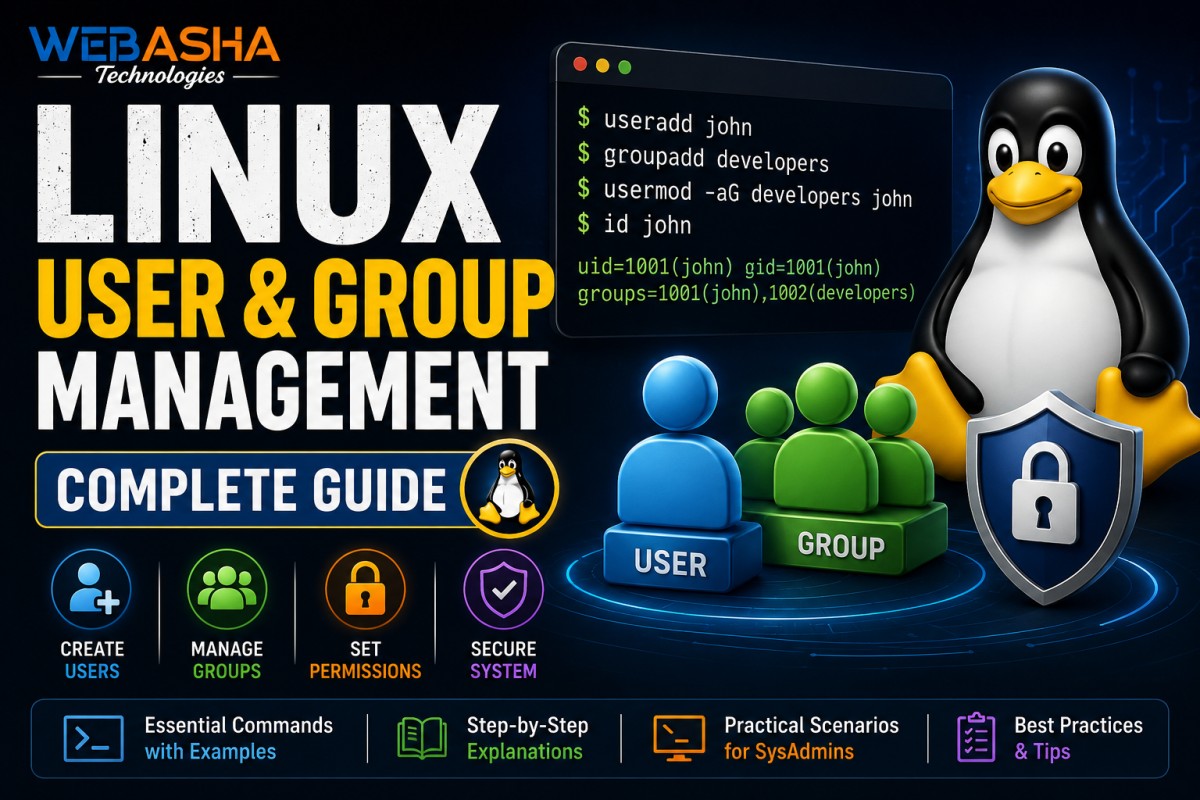
User and group management looks simple until you lock yourself out of a production server. This guide covers the commands, the four files they quietly edit, how sudo privileges should be granted, and the safety habits that separate confident administrators from nervous ones.
Table of Contents
- How Do You Manage Users and Groups in Linux?
- How Do You Create a User With a Home Directory?
- What Is the Difference Between Primary and Supplementary Groups?
- How Do You Grant sudo Access Safely?
- How Do You Set Password Ageing and Lock Accounts?
- How Do You Avoid Locking Yourself Out?
- How Do Linux File Permissions Actually Work?
- What Are Special Permissions and When Do They Matter?
- How Do You Audit Users and Access Regularly?
How Do You Manage Users and Groups in Linux?
Use useradd to create accounts, usermod to modify them, userdel to remove them, and passwd to set passwords. Groups follow the same pattern with groupadd, groupmod and groupdel. Every one of these commands is a front end to four plain-text files the system actually reads.
| File | Holds |
|---|---|
/etc/passwd |
Account name, UID, GID, home directory, login shell |
/etc/shadow |
Password hashes and ageing rules |
/etc/group |
Group names, GIDs and members |
/etc/sudoers |
Who may run what as root |
Editing these by hand is possible and occasionally necessary, but a typo in /etc/passwd can break logins for everyone. Use the commands unless you have a specific reason not to.
How Do You Create a User With a Home Directory?
Run useradd with the -m flag to create the home directory, then set a password with passwd. Without -m the account exists but has no home directory, which causes confusing login failures and is one of the most common beginner mistakes.
Flags worth knowing: -s sets the login shell (use /sbin/nologin for service accounts that should never log in), -G adds supplementary groups, and -u forces a specific UID when it must match across servers.
What Is the Difference Between Primary and Supplementary Groups?
Every user has exactly one primary group, applied automatically to files they create, plus any number of supplementary groups granting additional access. Confusing the two is why files end up with unexpected ownership on shared directories.
Check both with id username. When adding supplementary groups with usermod -G, always include -a. Using usermod -G alone replaces the user's supplementary groups rather than adding to them, silently removing access.
How Do You Grant sudo Access Safely?
Add the user to the sudo group on Debian and Ubuntu, or the wheel group on RHEL-based systems. This is safer than editing the sudoers file directly. If you must edit sudoers, always use visudo, which validates syntax before saving and prevents an error that would lock out all administrative access.
Grant the narrowest privilege that works. A rule permitting one specific command is far safer than blanket root access, and it makes audit logs meaningful.
How Do You Set Password Ageing and Lock Accounts?
Use chage to control password expiry, minimum and maximum age, and warning periods. To disable access, lock the account with usermod -L or passwd -l rather than deleting it, because deletion destroys the UID mapping and can orphan the user's files.
For departing staff, locking preserves file ownership and audit history. Delete only after deciding what happens to their data.
How Do You Avoid Locking Yourself Out?
Keep a second terminal session open with working root or sudo access whenever you change authentication, sudo rules or shells. Test the change in the new session before closing the working one. This single habit prevents most lockout incidents.
Common causes of lockout: setting a shell to /sbin/nologin by accident, a syntax error in sudoers saved without visudo, and removing your own account from the wheel or sudo group.
User, group and permission management is fundamental to Linux administration and a core RHCSA exam topic, covered hands-on in WebAsha RHCSA training.
How Do Linux File Permissions Actually Work?
Every file has an owner, a group and three permission sets covering read, write and execute for the owner, the group and everyone else. Access is decided by the first matching category, which is why adding a user to a group does not always grant the access people expect.
| Permission | On a File | On a Directory |
|---|---|---|
| Read | View contents | List the names inside |
| Write | Modify contents | Create or delete entries |
| Execute | Run as a program | Enter and access items inside |
The directory execute bit causes the most confusion. Without it, a user cannot enter a directory even with read permission, which produces access failures that look inexplicable until you understand the distinction.
What Are Special Permissions and When Do They Matter?
Beyond the standard read, write and execute bits, Linux has setuid, setgid and the sticky bit. Setgid on a shared directory is particularly useful because it makes new files inherit the directory group, which solves most shared-folder access problems cleanly.
- setuid - the program runs as its owner rather than the caller; powerful and a common security risk
- setgid on a directory - new files inherit the directory's group, ideal for team shares
- sticky bit - users can only delete their own files in a shared writable directory
For a shared team folder, the reliable pattern is a dedicated group, group write permission and setgid on the directory. Without setgid, files inherit each user's primary group and colleagues cannot edit each other's work - the single most common shared-folder complaint.
Audit setuid binaries periodically. An unnecessary setuid program is a privilege escalation route, and attackers look for them early.
How Do You Audit Users and Access Regularly?
Review accounts periodically for dormant logins, unexpected group memberships, accounts belonging to departed staff and unnecessary sudo privileges. Regular auditing catches the access drift that accumulates quietly and becomes a genuine security problem over time.
- Dormant accounts - identify logins unused for an extended period
- Group membership - confirm every privileged group member still needs it
- Departed staff - verify offboarding actually locked the account
- sudo rules - review who can run what, and narrow where possible
- Shared accounts - identify and eliminate them; they destroy accountability
- Password ageing - check expiry settings are applied consistently
Access drift happens because granting permission is quick and revoking it is nobody's priority. Someone moves team, keeps their old group membership, gains new ones, and gradually accumulates access far beyond their role.
A quarterly review that documents who approved each privileged membership turns this from an accumulating risk into a managed one, and it is exactly the evidence auditors ask for.
Talk to a WebAsha training advisor about batches, syllabus and current fees.
Linux User and Group Management: FAQs
What's Your Reaction?
 Like
0
Like
0
 Dislike
0
Dislike
0
 Love
0
Love
0
 Funny
0
Funny
0
 Wow
0
Wow
0
 Sad
0
Sad
0
 Angry
0
Angry
0

With a passion for staying on the cutting edge of technology trends, I am dedicated to delivering content that not only informs but also inspires. Whether you need in-depth analysis pieces, informative guides, or thought-provoking opinion pieces, I craft content that resonates with tech enthusiasts and professionals alike.













![Top 10 Famous Ethical Hackers in India [Updated 2026]](https://www.webasha.com/blog/uploads/images/202608/image_140x98_da23f65c290cfbf1237d77aec58a2f0f.jpg)