Top 50 Linux Commands Every Beginner Must Know
The Linux commands that genuinely matter for beginners, grouped by the task you are trying to accomplish rather than alphabetically, with the context that makes them stick.
Topic: Linux Administration in IT Infrastructure · Commands & reference
Learning path: Linux to RHCSA, lesson 3 of 23
Quick answer: Beginners should first learn navigation and file commands such as pwd, ls, cd, cp, mv, rm and cat. Next come permissions (chmod, chown), processes (ps, top, kill), text tools (grep, find) and system or network checks (df, free, ip, ping). Learn them by task and practise in a terminal, not by memorising a list.
Key takeaways
- Start with pwd, ls, cd, cp, mv, rm and cat to move around and handle files.
- Then learn chmod, chown, ps, top, kill and grep.
- Use rm with care and avoid running it as root in a path you have not checked.
Command lists are easy to find and hard to learn from, because they present fifty commands with no sense of which matter or when you would reach for them. This guide groups them by the task you are actually trying to do, which is how they are learned in practice and how they are recalled under pressure.
Topics covered in this guide: Linux commands for beginners, basic Linux commands, Linux command line, file permissions commands, process management, Linux networking commands.
Table of Contents
- Which Linux Commands Should a Beginner Learn First?
- Navigation and File Inspection
- File and Directory Management
- Permissions and Ownership
- Process Management
- Text Processing and Searching
- System Information and Monitoring
- Networking Commands
- Package Management and Archives
- How Should You Actually Learn These?
Which Linux Commands Should a Beginner Learn First?
Start with navigation and file inspection: pwd, ls, cd, cat, less and find. These let you explore a system safely without changing anything, which builds the mental model everything else depends on. Add file manipulation only once you can navigate confidently.
Learning in this order matters because destructive commands become genuinely dangerous when you are unsure where you are in the filesystem. Confidence about location comes first.
Navigation and File Inspection
The core navigation commands are pwd to show where you are, ls to list contents, cd to move between directories, and tree for a visual structure. For reading files, use cat for short files, less for long ones, and head or tail for the beginning or end.
| Command | Purpose | Common Use |
|---|---|---|
pwd |
Print working directory | Confirm location before anything risky |
ls |
List directory contents | With -l for detail, -a to include hidden files |
cd |
Change directory | cd - returns to the previous directory |
cat |
Display file contents | Short files only |
less |
Page through a file | Long files and logs |
head / tail |
First or last lines | tail -f follows a growing log |
find |
Search for files | By name, size, age or type |
tail -f deserves special mention. Watching a log update live while reproducing a problem is one of the most useful troubleshooting habits you can build.
File and Directory Management
The main commands are cp to copy, mv to move or rename, rm to delete, mkdir to create directories, touch to create empty files, and ln to create links. These modify the filesystem, so confirm your location and target before running them.
cp- copy files; add -r for directories, -i to prompt before overwritingmv- move or rename; the same command does bothrm- delete; there is no recycle bin, so -i is a worthwhile habitmkdir- create directories; -p creates parents as neededtouch- create an empty file or update its timestampln -s- create a symbolic link
The absence of an undo is the single most important thing to internalise. Deleted files are gone, and recovery is difficult enough that prevention is the only reliable strategy.
Permissions and Ownership
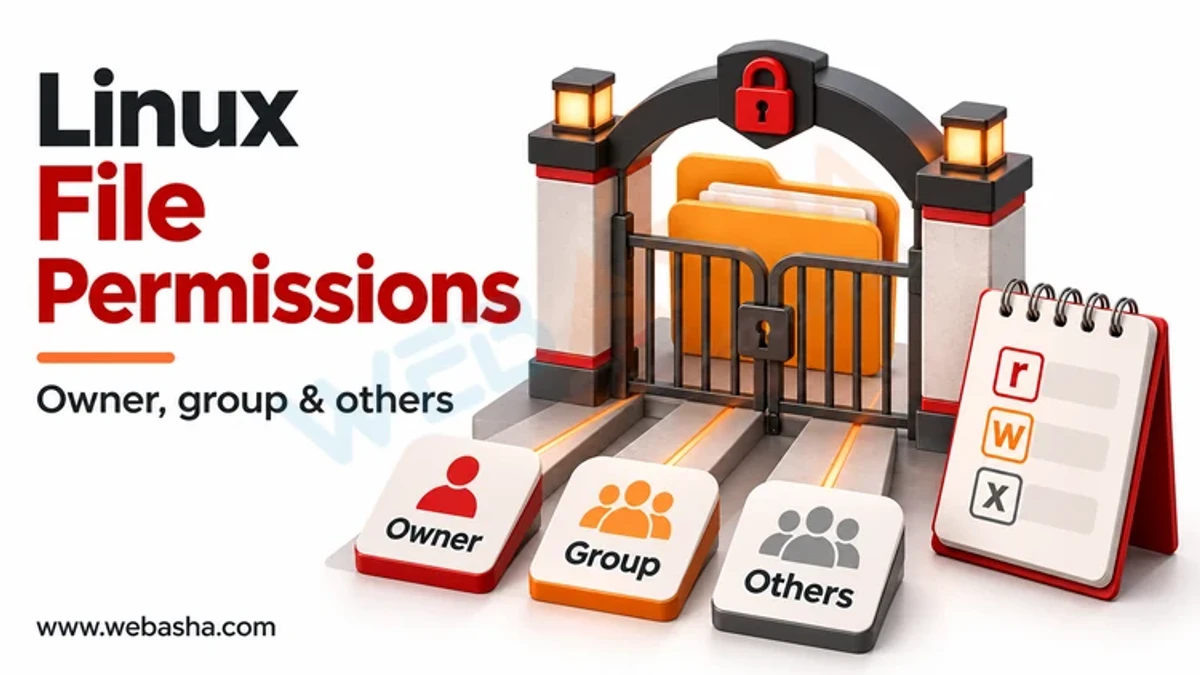
Use chmod to change permissions, chown to change the owner, chgrp for the group, and umask to control defaults for new files. Combine with ls -l to see current permissions, which is where most access troubleshooting begins.
Permissions are the cause of a large share of beginner problems: a script that will not run, a file that cannot be written, a directory that cannot be entered. Reading ls -l output fluently solves most of them immediately.
Remember that directory execute permission controls entry, not execution. Without it, you cannot enter a directory even with read permission, which produces confusing failures.
Process Management
Use ps to list processes, top or htop to watch them live, kill to stop one, and jobs with bg and fg to manage background tasks. systemctl controls services on modern distributions.
| Command | Purpose |
|---|---|
ps aux |
Snapshot of all running processes |
top / htop |
Live view of CPU and memory use |
kill / killall |
Send a signal to stop a process |
systemctl |
Start, stop, enable and check services |
jobs, bg, fg |
Manage background and foreground tasks |
nohup |
Keep a command running after logout |
Prefer stopping a service through systemctl rather than killing its process directly. Killing bypasses the service's own shutdown handling, which can leave files or state inconsistent.
Text Processing and Searching
The essential text tools are grep to search, sed to substitute, awk to process columns, sort and uniq to organise output, wc to count, and cut to extract fields. Combined with pipes, they handle most log analysis without any scripting.
grep- search text; -i ignores case, -r searches recursively, -v invertssed- stream editing, most commonly find-and-replaceawk- column-based processing, ideal for structured outputsort/uniq- ordering and deduplicating, often used togetherwc- count lines, words or characterscut- extract specific fields from delimited text
These become powerful when piped together. Extracting a field, sorting it, counting duplicates and ranking the result is a single line and answers a surprising number of operational questions.
System Information and Monitoring
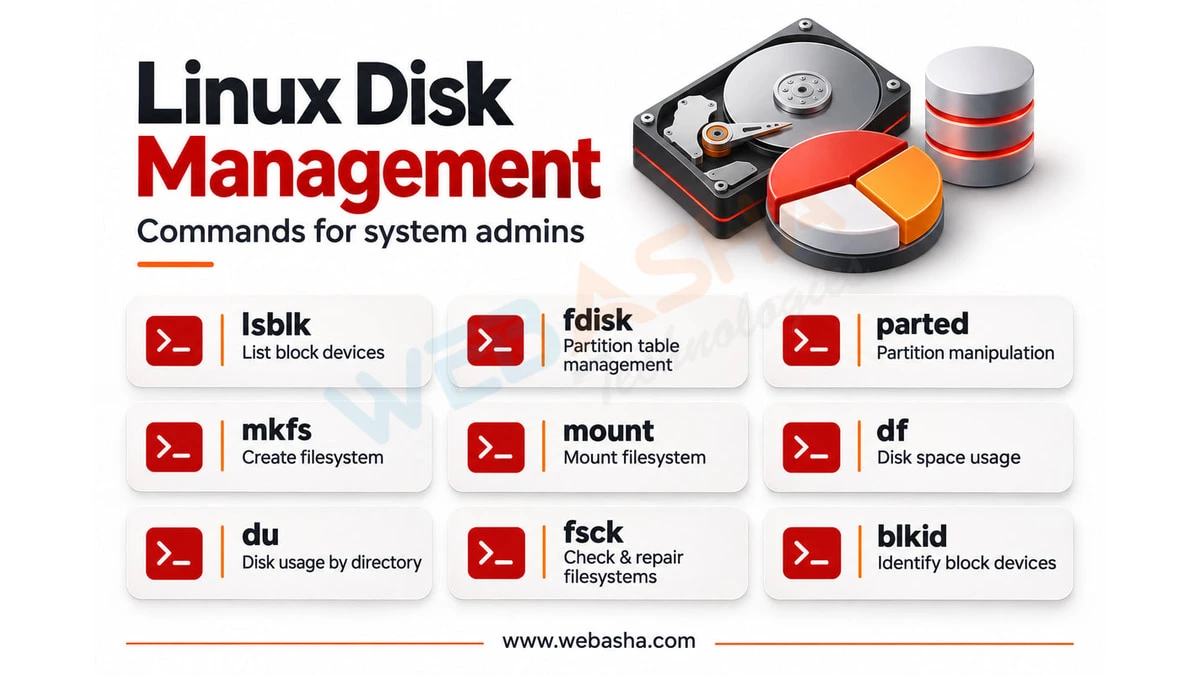
Use df for filesystem usage, du for directory sizes, free for memory, uname for system details, uptime for load, and lsblk for block devices. These are the first commands to run when investigating a slow or full system.
A useful diagnostic habit is running df -h, free -h and uptime together when something feels wrong. Between them they reveal disk exhaustion, memory pressure and excessive load, which cover a large share of performance complaints.
Networking Commands
The common tools are ip to inspect and configure interfaces, ping to test reachability, ss to show open connections, dig or nslookup for DNS, curl or wget to fetch URLs, and ssh for remote access.
| Command | Answers the Question |
|---|---|
ip a |
What is my IP configuration |
ping |
Can I reach that host at all |
ss -tulpn |
What is listening on this machine |
dig |
Is DNS resolving correctly |
curl -I |
Is that web service responding |
ssh |
Connect to a remote machine |
These map directly onto the layered troubleshooting approach described in our OSI model guide.
Package Management and Archives
Package commands differ by distribution: apt on Debian and Ubuntu, dnf or yum on RHEL-based systems. For archives, tar handles most cases, with gzip and zip for compression.
Learn your distribution's package manager properly rather than memorising both. Installing, removing, searching and checking what a package installed covers almost all routine use.
tar is notoriously hard to remember. The common cases are creating an archive and extracting one, and it is entirely reasonable to keep those two commands in a personal notes file rather than memorising the flags.
How Should You Actually Learn These?
Use them for real tasks rather than memorising lists. Set yourself small problems, find which directory is filling a disk, count errors in a log, find files modified today, and look up the flags as you go. Repetition through use is what makes commands stick.
Two habits accelerate everything: reading the manual page when a command does not behave as expected, and using --help for a quick reminder of flags. Both are faster than searching online once you are used to them.
Our Linux command line introduction covers the fundamentals, and this material is central to RHCSA training.
Talk to a WebAsha training advisor about batches, syllabus and current fees.
Related reading
- How to Delete a Directory in Linux?
- Top 50+ Must-Know Linux Commands for Beginners [2026 Updated Cheat Sheet]
- [2026] Top 50 Linux Command Interview Questions and Answers
Reference
For the authoritative details, see Red Hat product documentation.
Frequently Asked Questions
What's Your Reaction?
 Like
0
 Dislike
0
 Love
0
 Funny
0
 Wow
0
 Sad
0
 Angry
0

With a passion for staying on the cutting edge of technology trends, I am dedicated to delivering content that not only informs but also inspires. Whether you need in-depth analysis pieces, informative guides, or thought-provoking opinion pieces, I craft content that resonates with tech enthusiasts and professionals alike.