Windows 11 vs macOS vs Linux: How the Desktop Interfaces Differ and What to Learn First
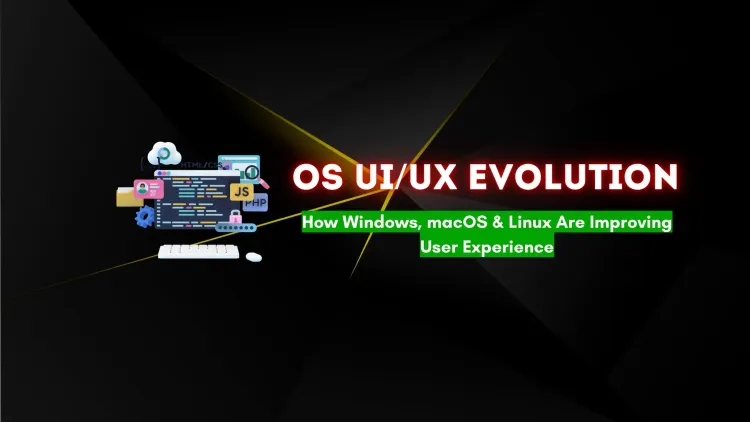
User Interface (UI) and User Experience (UX) play a crucial role in how users interact with modern operating systems. Leading OS platforms such as Windows, macOS, and Linux continuously evolve to provide seamless navigation, improved accessibility, and better aesthetics. Windows 11 introduces Snap Layouts and a modern Fluent Design, macOS Sonoma refines Stage Manager and Universal Control, while Linux environments like GNOME and KDE Plasma offer highly customizable interfaces. AI-driven UI, gesture controls, and cross-platform consistency are shaping the future of OS design. This blog explores key UI/UX enhancements, comparisons, and future trends in operating systems.
Quick answer: Windows 11 offers a centred taskbar, Snap Layouts and broad hardware and software support. macOS offers a consistent design, strong integration with Apple devices and Stage Manager. Linux gives a choice of desktop environments such as GNOME and KDE Plasma and the most customisation. For learning Linux administration, the terminal matters more than the desktop you pick.
Key takeaways
- Windows 11, macOS and Linux each have a distinct design approach and strengths. None is best for everyone.
- Linux has no single interface: GNOME, KDE Plasma and others differ a lot.
- Servers usually run Linux without a graphical interface, so admins work in the terminal.
- For a first Linux learning setup, a virtual machine with a mainstream distribution is enough.
- Interface improvements are claims to test yourself; no benchmark in this article is cited.
How do the three interfaces compare?
| Area | Windows 11 | macOS | Linux desktops |
|---|---|---|---|
| Start and launch | Centred taskbar and Start menu | Dock, Launchpad, Spotlight | Varies: GNOME Activities, KDE panel, others |
| Window management | Snap Layouts and Snap Groups | Mission Control, Stage Manager | Tiling and workspaces, depending on desktop |
| Customisation | Moderate | Limited, consistent | Very high |
| Hardware support | Widest | Apple hardware only | Wide, with some driver gaps |
| Software | Largest catalogue | Strong creative and developer tools | Open source, package managers |
| Learning curve | Low | Low | Medium |
Windows 11
Windows 11 introduced a centred taskbar and Start menu, rounded corners, Snap Layouts for arranging windows, virtual desktops and widgets. Its main strengths are compatibility and enterprise management. Weak points some users mention are stricter hardware requirements and fewer taskbar options than Windows 10. Official documentation is on Microsoft Learn.
macOS
Apple keeps one tightly designed interface across its devices, with Spotlight search, Mission Control, Stage Manager for grouping windows and strong continuity with iPhone and iPad. Recent releases have introduced a more translucent design language. The trade-off is that you work within Apple's choices and hardware.
Linux
Linux is a kernel, and the desktop is a separate choice. Popular environments include GNOME, which has a minimal, workflow-focused design, and KDE Plasma, which is highly configurable and familiar to Windows users. Most major distributions are moving from the older X11 display system to Wayland. For example, Red Hat Enterprise Linux 10 has moved to Wayland.
Which one should you learn on?
If your goal is IT, cloud or cybersecurity, the interface matters less than you think. Servers mostly run Linux with no graphical desktop, and you manage them over SSH. So:
- Use whatever laptop you have for daily work.
- Install a Linux distribution in a virtual machine (RHEL with a developer subscription, Rocky Linux or Ubuntu) and practise in the terminal.
- If you want to see a desktop, start with GNOME or KDE and do not switch every week.
Our posts on the future of desktop operating systems, cross-platform compatibility and open-source operating system trends add more context.
Common mistakes
- Choosing an operating system for its looks and not for the software and workflow you need.
- Dual-booting Linux without a backup.
- Expecting that a Linux desktop teaches server administration. The terminal does.
- Believing productivity claims that have no source.
Next steps
Next steps: to start Linux the practical way, see our Linux course, and read about open-source OS trends.
Related reading
Frequently Asked Questions
What's Your Reaction?
 Like
0
Like
0
 Dislike
0
Dislike
0
 Love
0
Love
0
 Funny
0
Funny
0
 Wow
0
Wow
0
 Sad
0
Sad
0
 Angry
0
Angry
0

Vaishnavi is a skilled tech professional at the Ethical Hacking Training Institute in Pune, responsible for managing and optimizing the technical infrastructure that supports advanced cybersecurity education. With deep expertise in network security, backend operations, and system performance, she ensures that practical labs, online modules, and assessments run smoothly and securely. Her behind-the-scenes contributions play a vital role in delivering a seamless and secure learning experience for aspiring ethical hackers.