
VMware Network Adapters Explained: Bridged, NAT, Host-Only and Custom Networks with Real Examples
VMware offers multiple networking modes, each serving different purposes depending on how you want your virtual machines (VMs) to communicate with each other, the host system, and external networks. The primary VMware network adapters include Bridged, NAT, Host-Only, and Custom Networks (VMnet0-VMnet9). Bridged Mode connects the VM to the physical network, giving it an IP address like any other device on the network. NAT Mode allows the VM to access the internet through the host’s network while remaining hidden from other devices. Host-Only Mode creates a private network where VMs can only communicate with the host and other VMs but not the internet. Custom Networks enable advanced configurations, allowing users to create isolated labs for testing purposes. Understanding these modes is crucial for penetration testers, network engineers, and cybersecurity researchers working in VMware environments. This blog explains how each mode works, their real-time use cases, and how
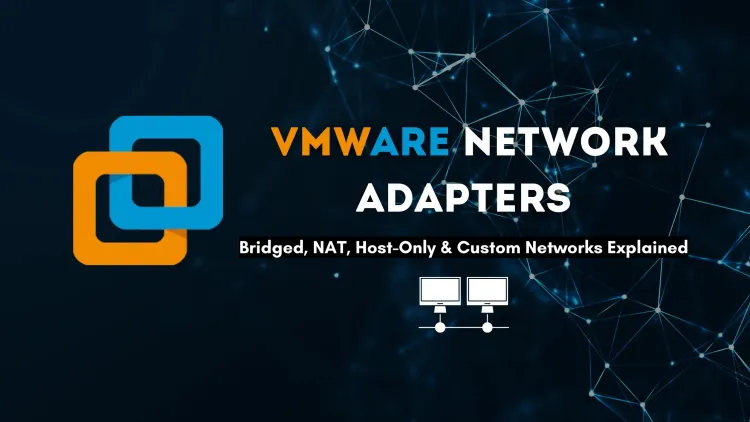
Quick answer: VMware gives a virtual machine four main ways to connect. Bridged puts the VM directly on your real network with its own IP. NAT shares the host's connection and hides the VM behind it. Host-only creates a private network between the VM and the host with no internet. Custom networks and LAN segments let you build isolated labs. Pick the mode by who the VM must talk to.
Key takeaways
- Use NAT for easy internet access, host-only for isolated labs, and bridged only when the VM must appear on your real network.
- Host-only gives VMs a private network with no internet, so add a second NAT adapter when a lab machine needs updates.
- If a VM has no connectivity, check the adapter mode, the VMnet service and the VM's DHCP-assigned IP before changing anything else.
Choosing the wrong network adapter is the most common reason a new lab "doesn't work": the VM has no internet, can't see the other VM, or is visible to the whole office. This guide explains how each VMware mode behaves, what IP addresses to expect, and how to fix the usual problems.
How does VMware networking work?
VMware Workstation and Fusion connect each VM's virtual network adapter to a virtual switch. The switch decides what the VM can reach. On Windows hosts the switches are named VMnet0 to VMnet19, and VMware's documentation says a Linux host can have up to 255. Three switches are set up for you by default:
| Default switch | Mode | What it connects to |
|---|---|---|
| VMnet0 | Bridged | Your physical network adapter (Ethernet or Wi-Fi) |
| VMnet1 | Host-only | A private network shared with the host only |
| VMnet8 | NAT | A private network that reaches outside through the host |
Two helper services make NAT and host-only work: a virtual DHCP server that hands out addresses, and a NAT device that translates traffic for VMnet8. A VM can have up to ten network adapters, so one VM can sit on several networks at once. See Broadcom's virtual networking components page for the full reference.
VMware Workstation Pro is now free for personal, educational and commercial use, so these settings, including the Virtual Network Editor, are available to anyone.
What is the difference between bridged, NAT and host-only?
The difference is reach. Bridged reaches everything on your LAN, NAT reaches outward only, and host-only reaches the host and other VMs on the same switch.
| Question | Bridged | NAT | Host-only | LAN segment |
|---|---|---|---|---|
| Internet access? | Yes, through your router | Yes, through the host | No (by default) | No |
| Can the host reach the VM? | Yes | Yes | Yes | No |
| Can other LAN devices reach the VM? | Yes | No, unless you forward a port | No | No |
| Who gives the IP? | Your router's DHCP | VMware's DHCP | VMware's DHCP | Nobody; set it yourself |
| Best for | Servers other devices must reach | Everyday VMs that need updates | Private labs | Fully isolated test segments |
Bridged mode: the VM joins your real network
In bridged mode the VM behaves like another physical computer plugged into your switch or Wi-Fi. It asks your router for an IP address in the same range as the host.
| Device | Example IP |
|---|---|
| Router (gateway) | 192.168.1.1 |
| Host laptop | 192.168.1.100 |
| Linux VM (bridged) | 192.168.1.101 |
Use it when other machines must reach the VM directly, for example a web server you test from your phone, a DNS or DHCP lab server, or a VM that must appear on the network like a real host.
Watch out for:
- Office, college and hostel networks often use MAC filtering, port security or 802.1X login. A bridged VM may get no IP, or may break network policy. Ask the network admin first.
- The VM is exposed to everything on the LAN, so keep it patched and firewalled.
- Scanning or probing a network you don't own or have written permission to test is not "practice". On a shared network it can breach acceptable-use rules and, in India, the IT Act. Use bridged mode for scanning only on your own home network.
NAT mode: internet access without exposure
In NAT mode the VM gets a private address on VMnet8, and the host translates its traffic. Websites see the host's IP, and other devices on your LAN cannot start a connection to the VM. NAT is the default for new VMs and the right choice most of the time.
VMware picks a random private subnet for VMnet8 when it installs. Within that subnet the addresses follow a fixed pattern, which helps when you set static IPs:
| Address | Used by |
|---|---|
| .1 | The host's VMnet8 adapter |
| .2 | The NAT device: use this as the VM's gateway and DNS |
| .3 to.127 | Free for static IPs |
| .128 to.253 | Handed out by VMware's DHCP |
| .254 | The DHCP server |
So if VMnet8 is 192.168.80.0/24, a NAT VM typically gets 192.168.80.128 or above, with 192.168.80.2 as its gateway. A common mistake is setting the gateway to.1 (the host adapter), which leaves the VM with no internet.
Need to reach a NAT VM from outside? Open the Virtual Network Editor, select VMnet8, click NAT Settings and add a port forward, for example host port 8080 to the VM's port 80. Forward only what you need.
Host-only mode: a private lab network
Host-only connects VMs to VMnet1, a private network shared with the host. There is no route to the internet, which makes it the safe default for security labs. The address pattern is the same as NAT, without the.2 NAT device: the host is.1, DHCP leases start at.128.
| Device | Example IP |
|---|---|
| Host (VMnet1 adapter) | 192.168.100.1 |
| Attacker VM, e.g. Kali Linux | 192.168.100.128 |
| Target VM, e.g. an intentionally vulnerable Linux or Windows image | 192.168.100.129 |
This is where vulnerable practice machines belong. They can't be reached from your LAN or the internet, and they can't call out if they are compromised during an exercise. If you plan a full practice setup, our guide to setting up a penetration testing lab covers tools, OS choices and topology.
Need updates on a host-only VM? Add a second adapter set to NAT, run the updates, then disconnect that adapter again. Don't bridge a deliberately vulnerable VM.
Custom networks and LAN segments
Custom networks are the extra VMnet switches (for example VMnet2 or VMnet3) you configure in the Virtual Network Editor. Each can be host-only or NAT, with its own subnet and DHCP setting. Use them to build multi-subnet labs, such as:
- VMnet2 (10.10.10.0/24): "internal" servers
- VMnet3 (10.10.20.0/24): a "DMZ" web server
- A router or firewall VM with one adapter on each, so you practise routing and firewall rules between subnets
LAN segments are simpler still: a private switch with no DHCP and no link to the host. Create them in VM > Settings > Network Adapter > LAN Segments. Use them when you want VMs that only see each other, and you are happy to assign static IPs. If subnet maths is new to you, read subnetting and network segmentation explained before you plan the ranges.
How do you change a VM's network adapter?
- Select the VM and open VM > Settings (on a Mac, Virtual Machine > Settings > Network Adapter in Fusion).
- Click Network Adapter and choose Bridged, NAT, Host-only, Custom (pick a VMnet) or LAN segment. You can change this while the VM is running.
- For bridged mode on a laptop, tick Replicate physical network connection state so the VM renews its IP when you switch Wi-Fi networks.
- Inside the guest, renew the address and check it:
# Linux guest
ip -br addr
ip route
sudo nmcli networking off && sudo nmcli networking on

# Windows guest
ipconfig /release
ipconfig /renew
ipconfig /all
To edit the switches themselves, open Edit > Virtual Network Editor and click Change Settings (it needs administrator rights on Windows). There you can set a subnet, turn DHCP on or off, choose which physical adapter VMnet0 bridges to, and add NAT port forwards. In Fusion the modes are named "Share with my Mac" (NAT), "Private to my Mac" (host-only) and "Bridged".
Which network mode should you choose?
| Your goal | Choose |
|---|---|
| Browse, install packages, follow a course | NAT |
| Let your phone or another PC reach a server VM | Bridged (or NAT with a port forward) |
| Ethical hacking practice with vulnerable VMs | Host-only or a custom VMnet |
| Malware or incident-response analysis | LAN segment or host-only, with snapshots and no shared folders |
| Practise routing, firewalls or Active Directory across subnets | Two or more custom VMnets plus a router VM |
| RHCSA or Linux admin practice with several VMs | NAT (VMs can see each other and reach repositories) |
If you also use VirtualBox, the ideas map closely: VirtualBox has NAT, NAT Network, Bridged, Host-only and Internal network modes, where Internal network is roughly VMware's LAN segment.
Troubleshooting common VMware network problems
| Symptom | Likely cause | Fix |
|---|---|---|
| Bridged VM gets no IP, or a 169.254.x.x address | VMnet0 bridges the wrong adapter (VPN, Hyper-V or a disconnected NIC), or the network blocks extra MAC addresses | In the Virtual Network Editor, set VMnet0 to your active Ethernet or Wi-Fi adapter instead of "Automatic". Try NAT if the network enforces port security |
| NAT VM has an IP but no internet | Wrong gateway or DNS, or the NAT service stopped | Use the.2 address as gateway and DNS. On Windows, check that VMware NAT Service and VMware DHCP Service are running in services.msc |
| Two VMs can't ping each other | They are on different VMnets, or a guest firewall blocks ICMP | Put both adapters on the same VMnet and check with ip -br addr. Allow ICMP in the guest firewall for testing |
| Host can't reach a host-only VM | The host's VMnet1 adapter is disabled | Enable "VMware Network Adapter VMnet1" in the host's network connections |
| Everything broke after a VPN or Windows update | Virtual adapters or settings were changed | Virtual Network Editor > Restore Defaults, then re-create any custom networks |
On a Windows host, ipconfig lists the VMnet1 and VMnet8 adapters with their subnets. That is the quickest way to see which range your VMs should be in.
Next step: build a small lab and test each mode
Create two lightweight Linux VMs. Put both on NAT and ping between them, move one to host-only and watch the ping fail, then put both on a custom VMnet with static IPs. Ten minutes of this teaches more than any diagram. If you want structured practice with virtual labs, our VMware training covers Workstation and vSphere networking in depth.
Related reading
Frequently Asked Questions
What's Your Reaction?
 Like
0
Like
0
 Dislike
0
Dislike
0
 Love
0
Love
0
 Funny
0
Funny
0
 Wow
0
Wow
0
 Sad
0
Sad
0
 Angry
0
Angry
0

Vaishnavi is a skilled tech professional at the Ethical Hacking Training Institute in Pune, responsible for managing and optimizing the technical infrastructure that supports advanced cybersecurity education. With deep expertise in network security, backend operations, and system performance, she ensures that practical labs, online modules, and assessments run smoothly and securely. Her behind-the-scenes contributions play a vital role in delivering a seamless and secure learning experience for aspiring ethical hackers.
![Top 10 Famous Ethical Hackers in India [Updated 2026]](https://www.webasha.com/blog/uploads/images/202608/image_450x280_b3317756e192c8d5e1fb674259f1a0c3.jpg)









![Top 10 Famous Ethical Hackers in India [Updated 2026]](https://www.webasha.com/blog/uploads/images/202608/image_140x98_da23f65c290cfbf1237d77aec58a2f0f.jpg)